Set your pricing
Your rates by duration, named sections, and extras.
This is for editing an existing profile. To create a profile for the first time, see Set up your profile. Onboarding only asks for your 1 hour rate; this page is where the full list lives.
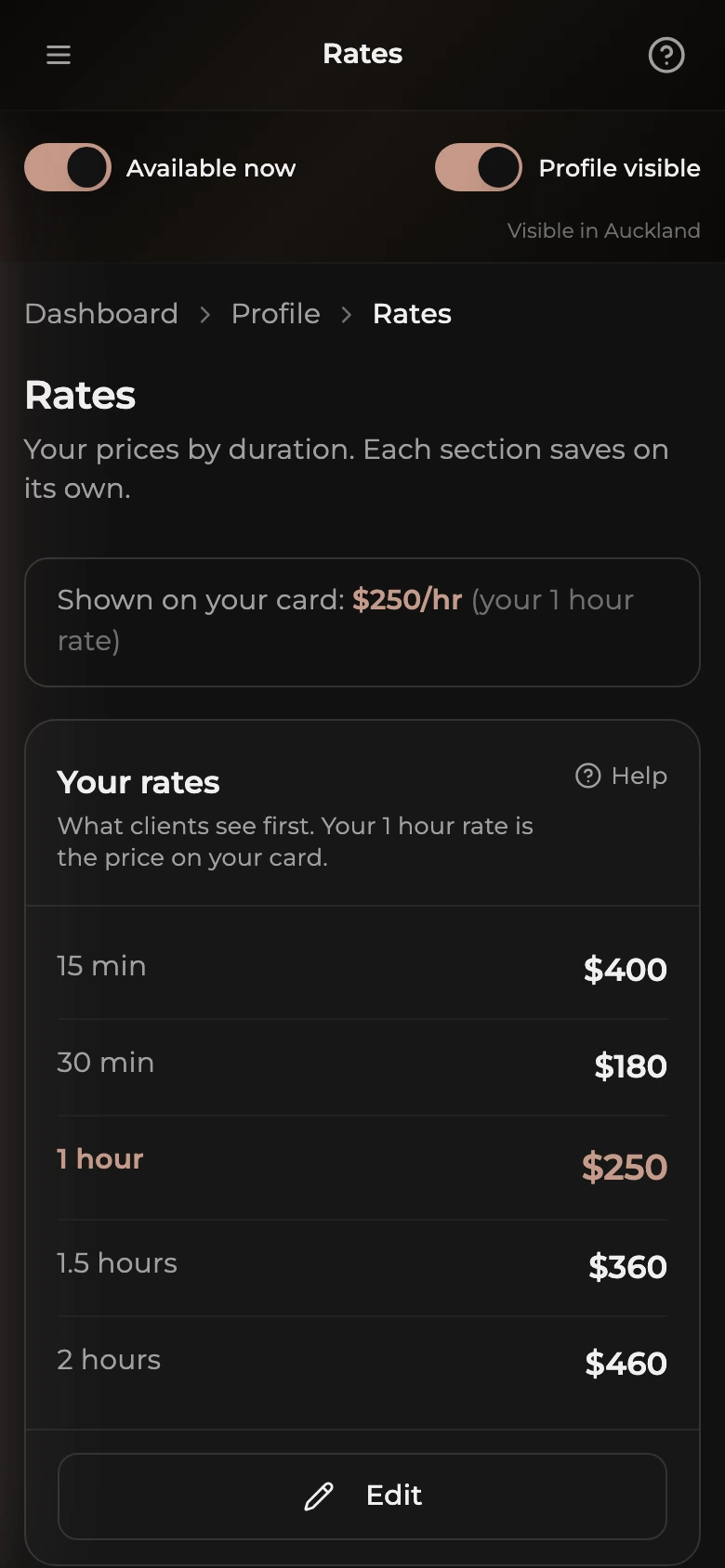
The Rates page is built from cards. Your rates is the main list of durations and prices. Below it you can add named sections (GFE, Couples, Dinner date, Duo, or your own) with their own prices, and an Extras card for add-ons. Each card saves on its own. All prices are in NZD.
How to open the Rates page
- Open the dashboard menu (the button in the top left on a phone).
- Tap Profile, then Rates.
How your card price works
The price on your directory card is your 1 hour rate from the Your rates card. The strip at the top of the page shows what the card currently says, for example Shown on your card: $250/hr (your 1 hour rate). If there is no 1 hour rate yet, it asks you to add one.
How to set your rates
- Tap Edit on the Your rates card.
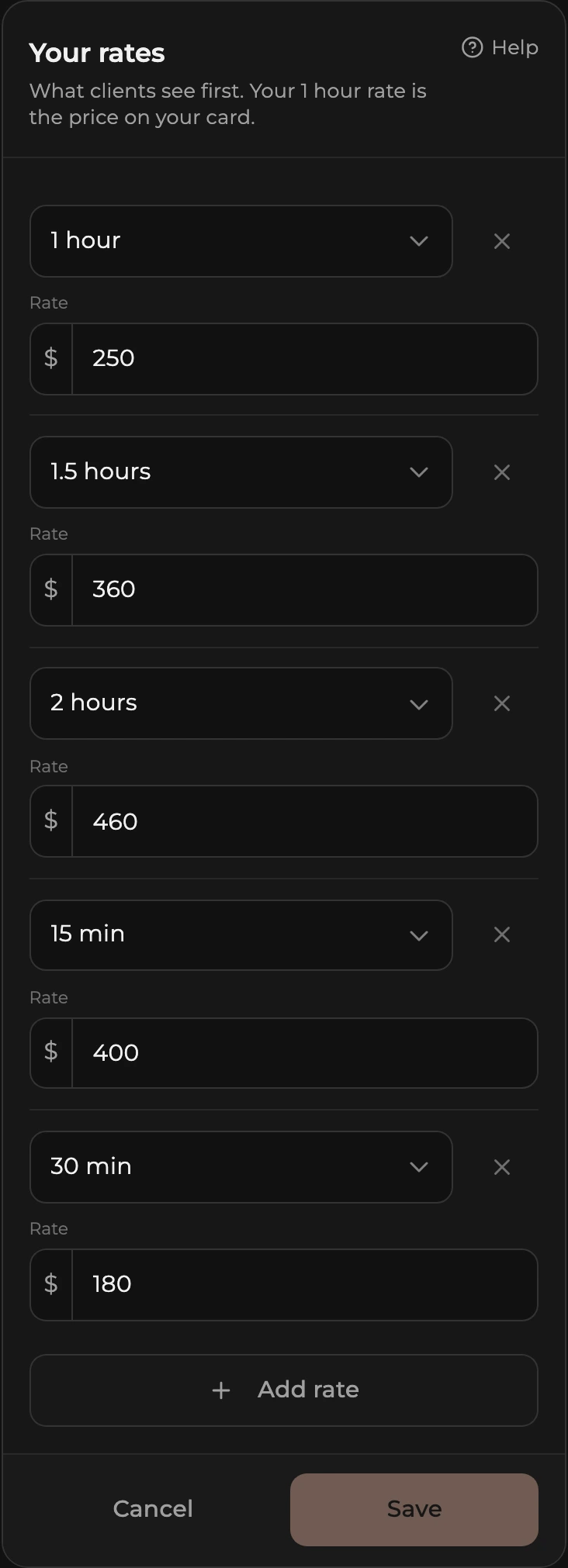
- Each row is a duration and a price. Pick the duration (15 min, 30 min, 45 min, 1 hour, 1.5 hours, 2 hours, 3 hours, Overnight, or Custom hours for anything else) and type the price.
- Tap Add rate for another row, or the x on a row to remove it. Each duration can only appear once in a section.
- Tap Save. Rows without a price are not saved.
If you offer both incall and outcall (set on the Location card of the General page), each row has an Incall price and an Outcall price. Leave the outcall price blank to use the same as incall. Otherwise there is a single Rate field.
How to add a rate section
A section prices a whole offering separately, with its own list of durations.
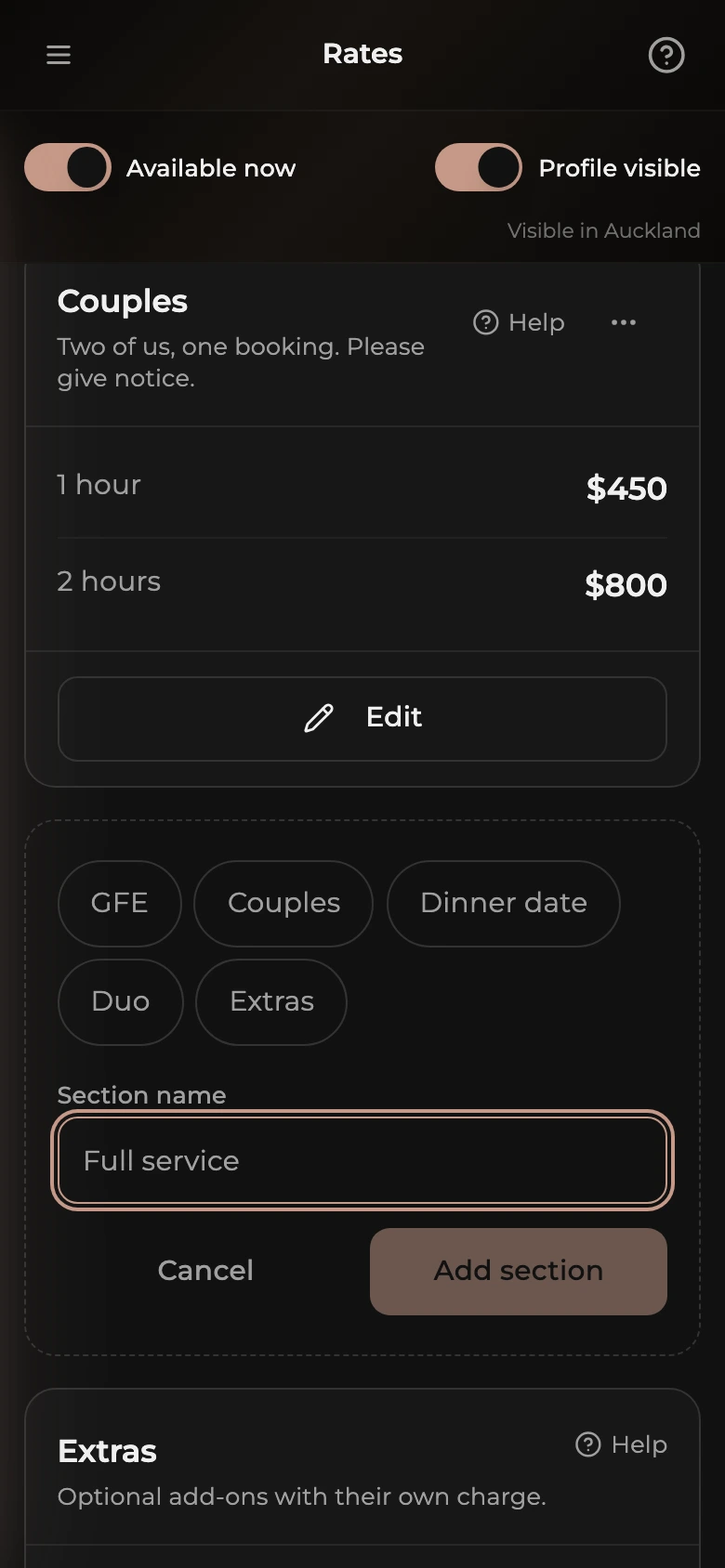
- Tap Add rate section under your existing cards.
- Tap one of the suggested names (GFE, Couples, Dinner date, Duo, Extras) or type your own Section name, then tap Add section.
- The new card appears with no rates yet. Tap Edit on it, add its rows the same way, and change the name or add a short Description there if you like.
The ... menu in the corner of a section card has Move up, Move down, and Delete section. Sections show on your profile in this order. Deleting a section removes every rate inside it.
How to add extras
Extras are optional add-ons with their own charge, such as a travel fee or a dinner date.
- Tap Edit on the Extras card.
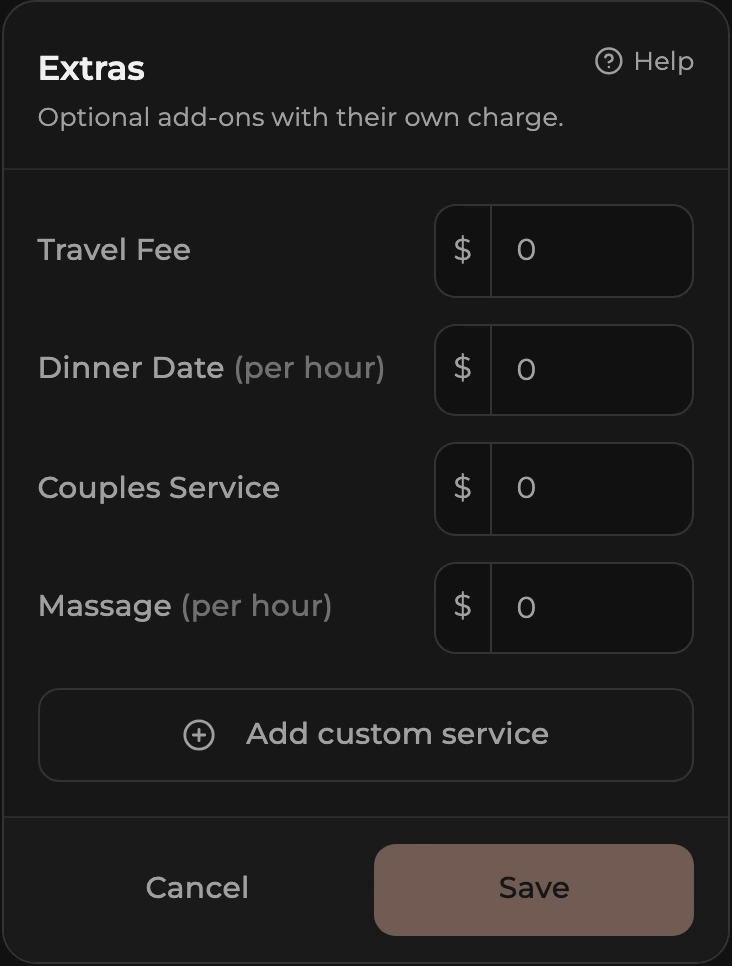
- Type a price next to any of the built-in extras: Travel Fee, Dinner Date (per hour), Couples Service, and Massage (per hour). Leave a field blank if you do not offer that extra.
- For anything else, tap Add custom service, type a Service name, pick Flat rate or Per hour, and type the Price. Use the x to remove a custom row.
- Tap Save.