Add a tour
Temporarily list yourself in another city for a date range.
Tours are managed from the Touring page under Profile in the dashboard menu.
How tours work
A tour temporarily lists you in another city for a date range. Add the city, choose start and end dates, and your profile shows in that city for those days. When the end date passes, the tour ends on its own and your listing returns to your home city. You never need to change your base location on the General page for a tour.
While a tour is running, your profile header shows the tour city and region with a small Usually [your home city] note, and the Location card on your General page shows a Touring now note.
Clients in the tour city also get advance notice. Your profile appears in that city's listings up to 3 days before your start date (7 days for smaller towns) with an Arrives in N days tag. Your listing itself only moves to the tour city on the start date.
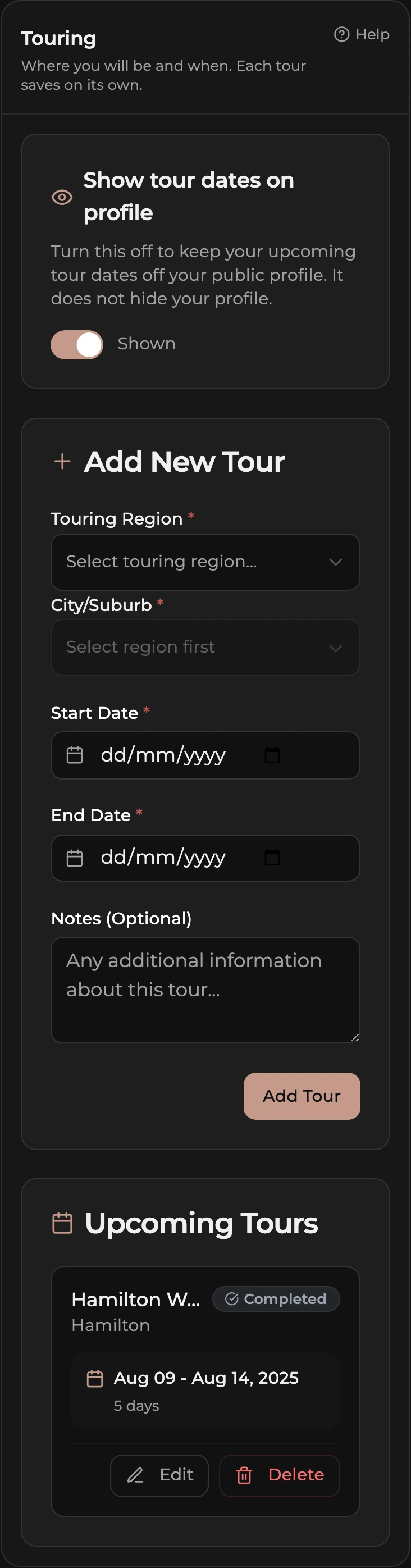
How to add a tour
- Open the dashboard menu, tap Profile, then Touring.
- Pick a Touring Region, then a City/Suburb.
- Choose a Start Date and End Date.
- Add anything useful in Notes (Optional).
- Tap Add Tour.
How to edit or extend a tour
- Find the tour in the list under the form.
- Tap Edit on it. Its details load into the form above.
- Change the city, dates, or notes. To extend, push the End Date out; to finish early, pull it back.
- Tap Update Tour to save, or Cancel to discard.
How to delete a tour
- Find the tour in the list.
- Tap Delete on it. The tour is removed straight away.
How to keep tour dates off your profile
At the top of the page there is a Show tour dates on profile switch. Turn it off to keep your upcoming tour dates (and the advance notice) off your public profile. The tour still runs and still moves your listing on the start date. It does not hide your profile.
Tour status
Each tour in the list shows a status. Scheduled means the start date has not arrived yet. Active means today is between the start and end dates. Completed means the end date has passed. There is no separate button to end a tour early: edit it and pull the End Date back, or delete it.