Manage the roster
Shifts for specific dates, off today, templates, copy last week.
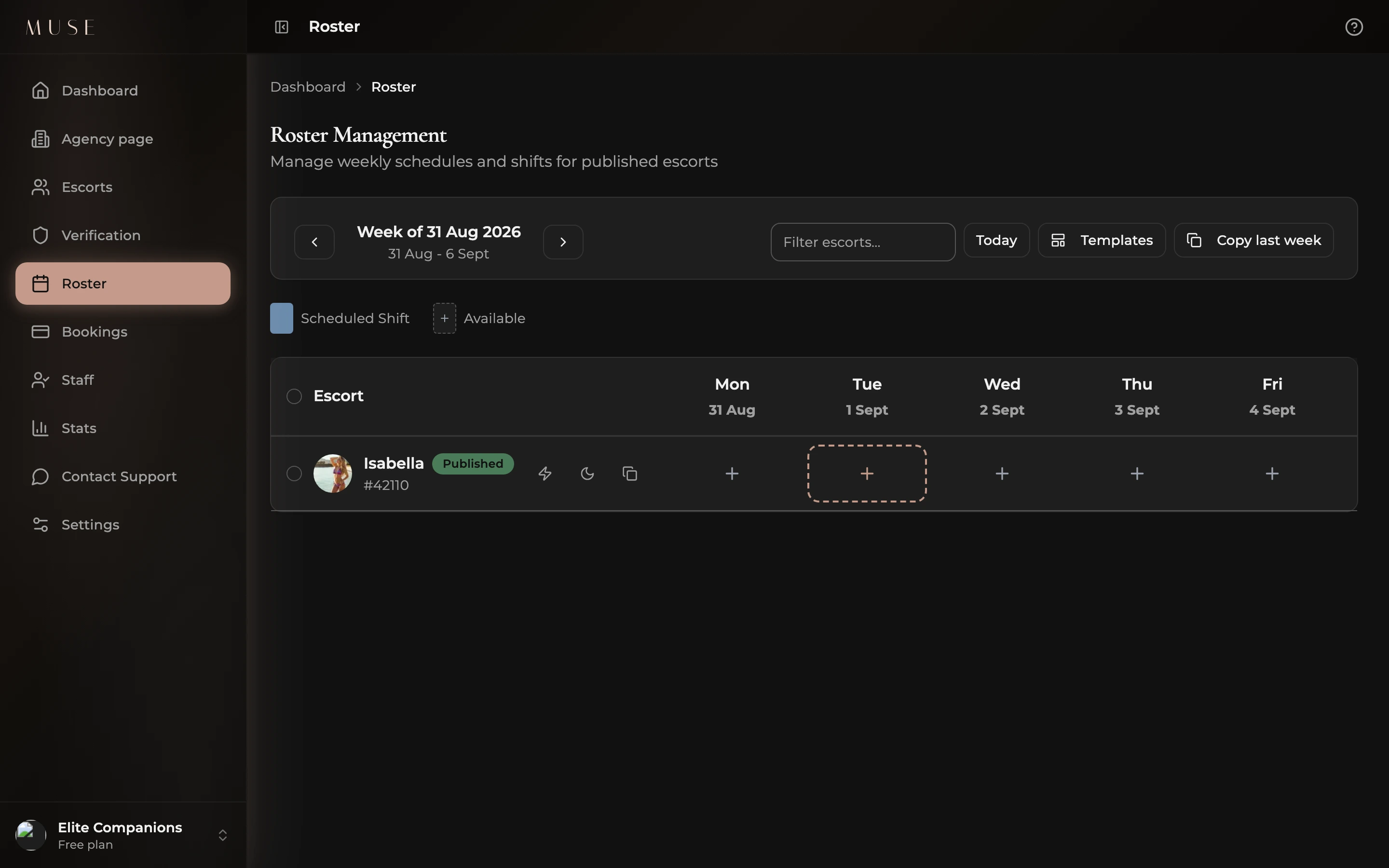
The Roster is one page where you plan working hours for every visible escort on your team for specific dates. It is faster than opening each profile one at a time. On a computer it is a grid: one row per escort, one column per day. On a phone each escort is a card with her seven days listed underneath.
How the Roster works with the weekly hours
This is the part most people miss, so read it once carefully.
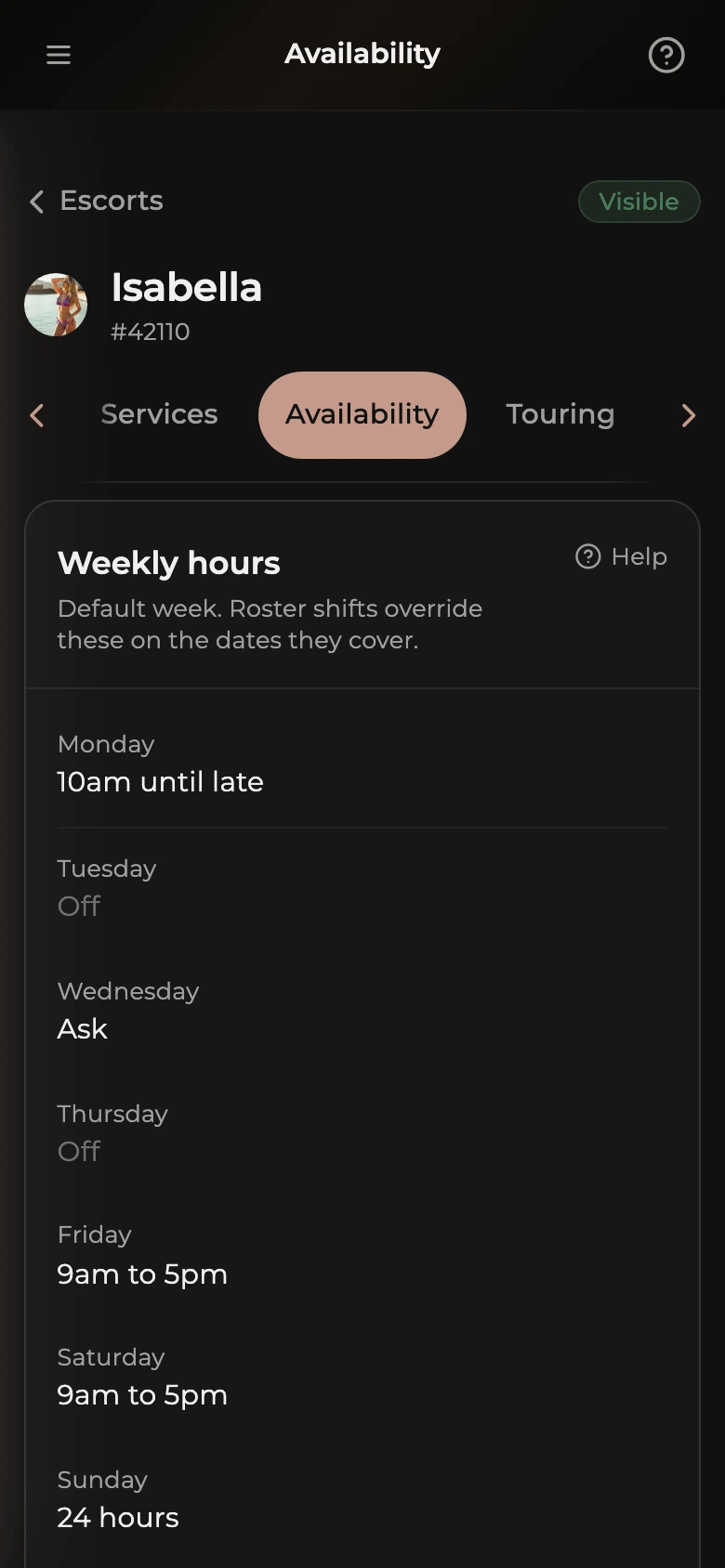
Every escort has her usual weekly hours set on her own Availability page (from the strip under her name) in the Weekly hours card. For example, every Monday 9am to 5pm, every Tuesday 10am to 7pm. Same pattern, every week.
The Roster sets hours for specific dates instead. When you save a shift on the Roster for, say, next Wednesday, that shift replaces her usual Wednesday hours on her public listing for that one date only.
The rule: for each upcoming day, the public listing checks the Roster first. If there is a shift on the Roster for that day, those hours show. If not, her weekly hours show. Her Availability page has a read-only Next 14 days card that shows exactly this merged result, with an Edit in roster link.
In short, use the Roster only for days that change. If she is following her usual weekly hours, leave the Roster alone.
How to open the Roster
- Open the dashboard menu.
- Tap Roster.
Only escorts whose profile is visible appear here. Hidden and draft profiles are left out until they go live.
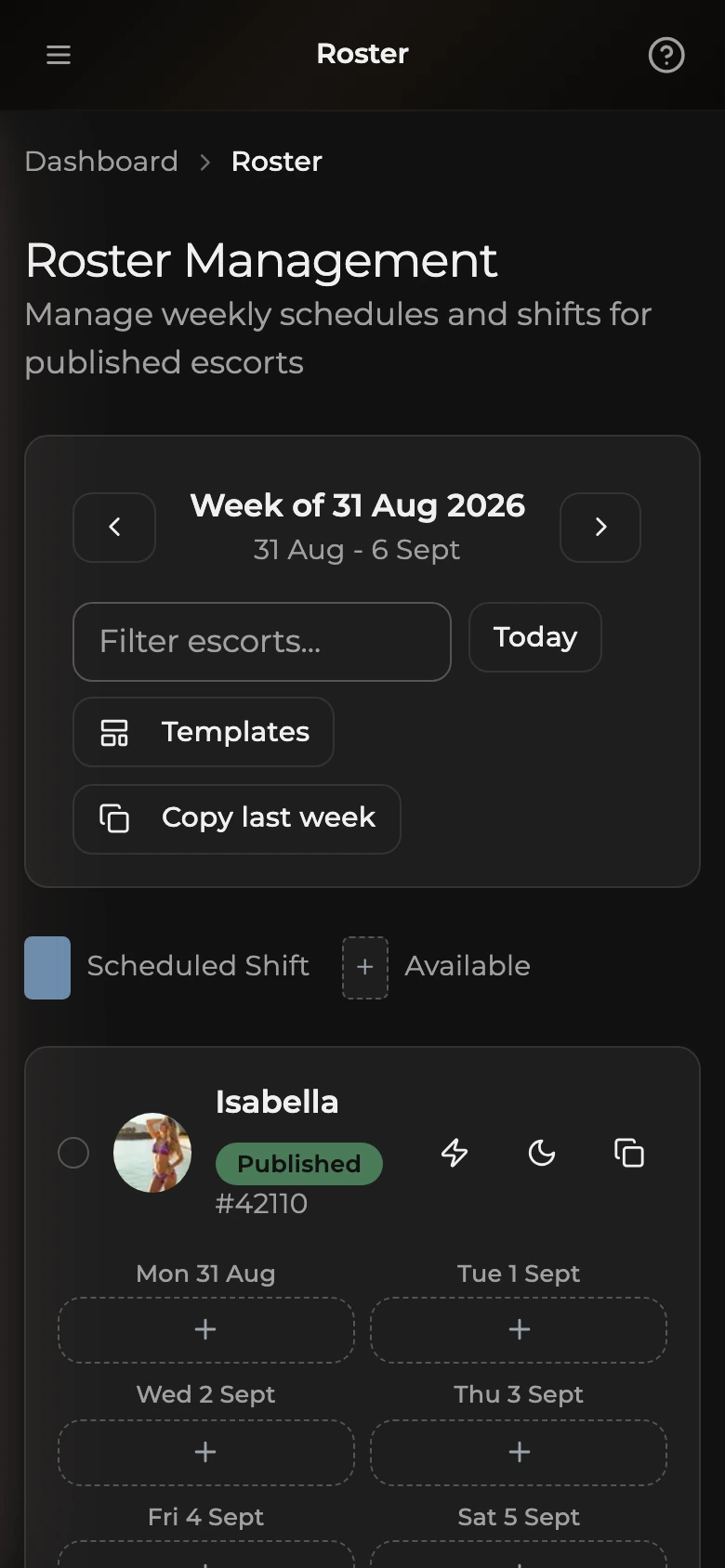
How to set hours for a single day
- Find the escort.
- Tap the + on the day you want to schedule.
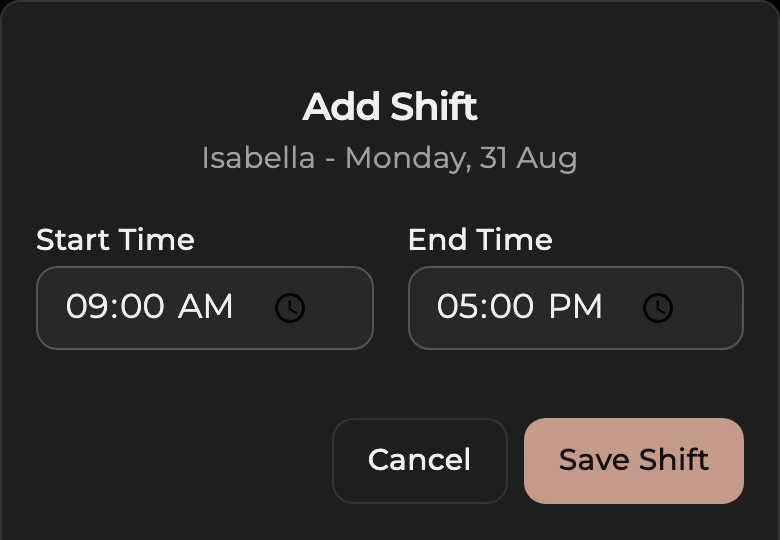
- Enter the Start Time and End Time.
- Tap Save Shift.
How to change or delete a shift
- Tap the existing shift to open it.
- Edit the times and tap Save Shift, or tap Delete Shift to remove it.
When you delete a shift, that day falls back to her weekly hours on the public listing.
The three icons on an escort
- Lightning: mark her Available now for 60 minutes. Same as the switch on her card in the Escorts list.
- Moon: mark her off today. An Off today badge shows on the roster and her listing says Off today, back tomorrow for the rest of the day; it clears itself at midnight. Tap again to remove it.
- Copy: copy her shifts from the previous week into this week.
How to apply a template across the week
- To apply it to some escorts only, tick the box next to those escorts first. Skip this to apply it to everyone.
- Tap Templates.
- Pick one: Business Hours (Monday to Friday 9am to 5pm), Evening Shift (Monday to Friday 6pm to 2am), Weekends Only (Saturday and Sunday 10am to 10pm), or Full Week (every day 10am to 10pm).
- Confirm. The hours are saved on the days the template covers.
How to copy last week's shifts into this week
- For one escort, tap the copy icon on her card.
- For everyone, tap Copy last week at the top. To copy for some escorts only, tick them first.
- Confirm. Careful: days already set in the current week are replaced by last week's shifts, so do this before making this week's one-off changes.
How to move between weeks
- Use the arrows either side of the week label.
- Tap Today to jump back to the current week.
For how weekly hours are set and what clients see, read Set your weekly availability.