Set your weekly availability
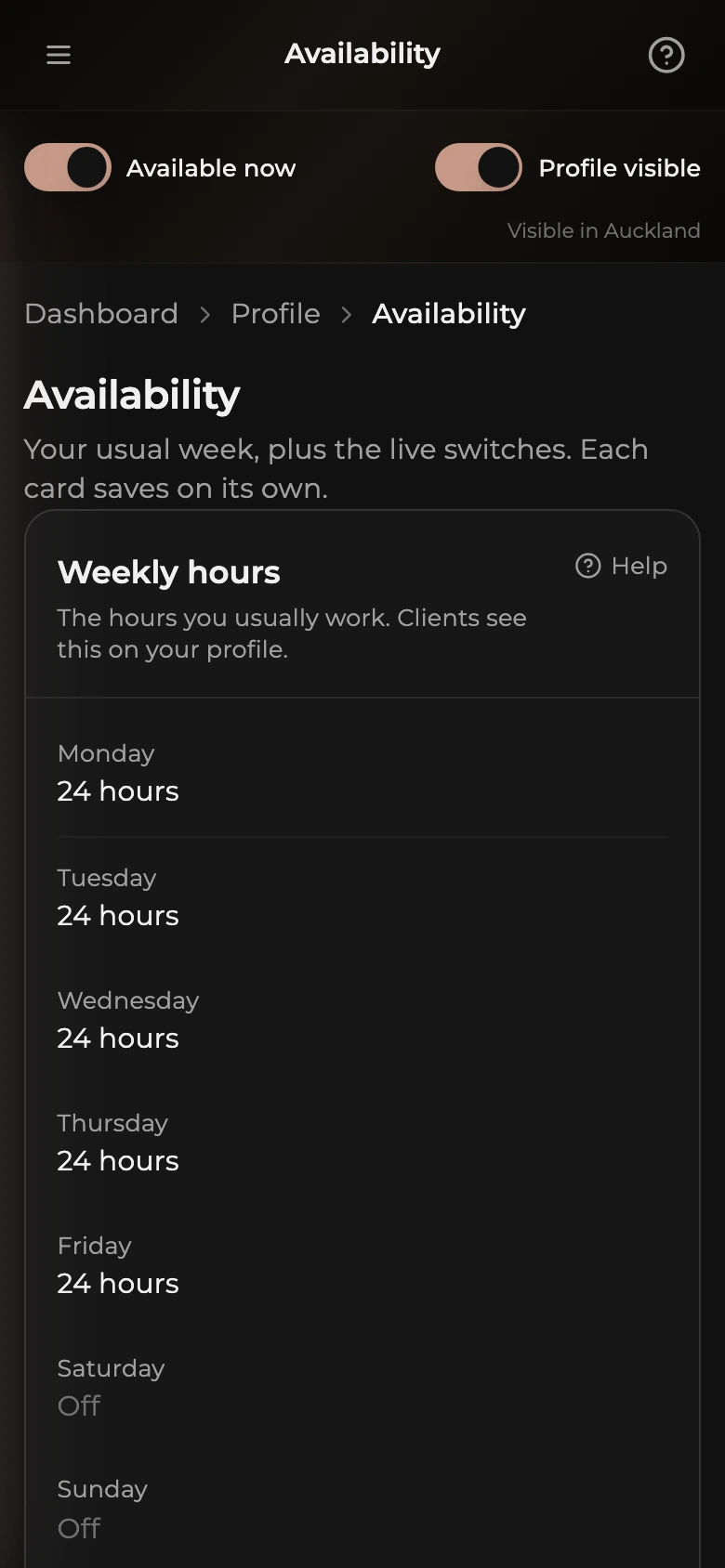
The Weekly hours card: which days and hours you usually work.
Your weekly hours tell clients which days and hours you usually work. On top of that there are two live switches, Available now and Profile visible, for what is happening right now. This article covers the weekly hours. The switches are explained in Available now, hiding your profile, and coming back.
How to open the Availability page
- Open the dashboard menu (the button in the top left on a phone).
- Tap Profile, then Availability.
The page has two cards: Weekly hours and Available now.
How to set your weekly hours
- Tap Edit on the Weekly hours card.
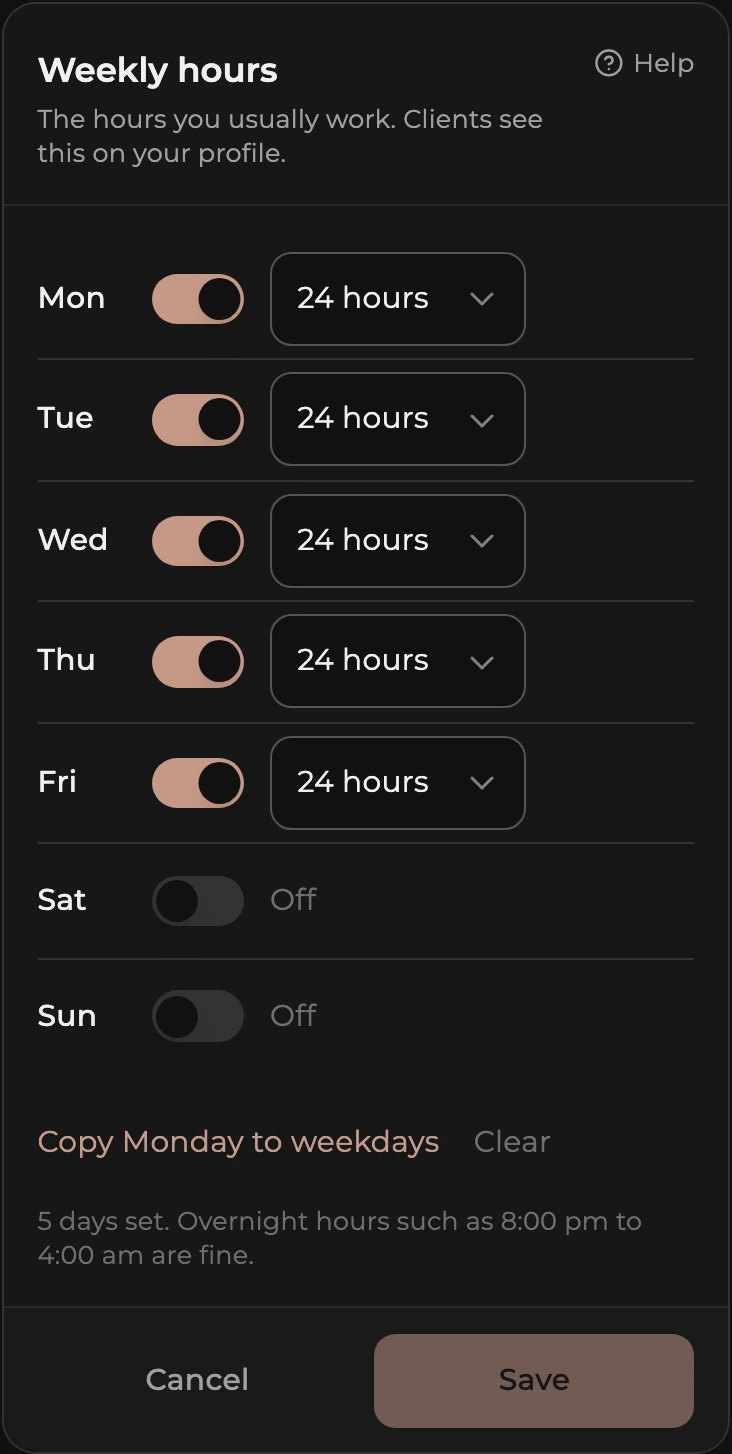
- Each day has a switch. Turn it on for the days you work.
- For each day that is on, pick from the dropdown: Set times (choose a start and end time), Until late (you start at a set time and finish late), 24 hours, or Ask (clients contact you for your hours).
- If you picked Set times, choose the start and end. Overnight hours such as 8:00 pm to 4:00 am are fine.
- Tap Save.
How to copy Monday to the other weekdays
- Set Monday exactly how you want it.
- Tap Copy Monday to weekdays under the list. Tuesday to Friday take Monday's hours.
- Adjust any day you want different, then tap Save.
Clear turns every day off so you can start again. Nothing is saved until you tap Save.
How to mark a day off every week
- Tap Edit on Weekly hours.
- Turn that day's switch off. It shows as Off.
- Tap Save. That day is off every week until you change it back.
What clients see
Your profile shows your hours for each day of the week, and the directory uses them to show whether you are working right now. Switching on Available now puts you at the top of the listings for 60 minutes regardless of your hours. Changing your weekly hours is permanent: it applies every week from then on, until you edit it again.
There is no separate Off today switch. For a day off that is not your usual day off, either leave Available now off, or turn Profile visible off for the day and back on when you are working again. Both are on this page and at the top of every dashboard page.