Edit your profile
The General page: name, contact, location, appearance, bio, and socials, one card each.
This is for editing an existing profile. To create a profile for the first time, see Set up your profile.
Your profile is edited on card pages under Profile in the dashboard menu: General, Photos, Rates, Services, Availability, and Touring. This article covers the General page. It holds your publish status, your name and details, contact options, location, appearance, bio, and socials.
How the cards work
Every section is a card. A card shows what is saved, and tapping Edit at the bottom of it swaps the card for a form. Tap Save to keep the change or Cancel to throw it away. Each card saves on its own, so you never lose work in one card by leaving another one half done. Saving updates your public profile straight away. It does not change whether your profile is visible.
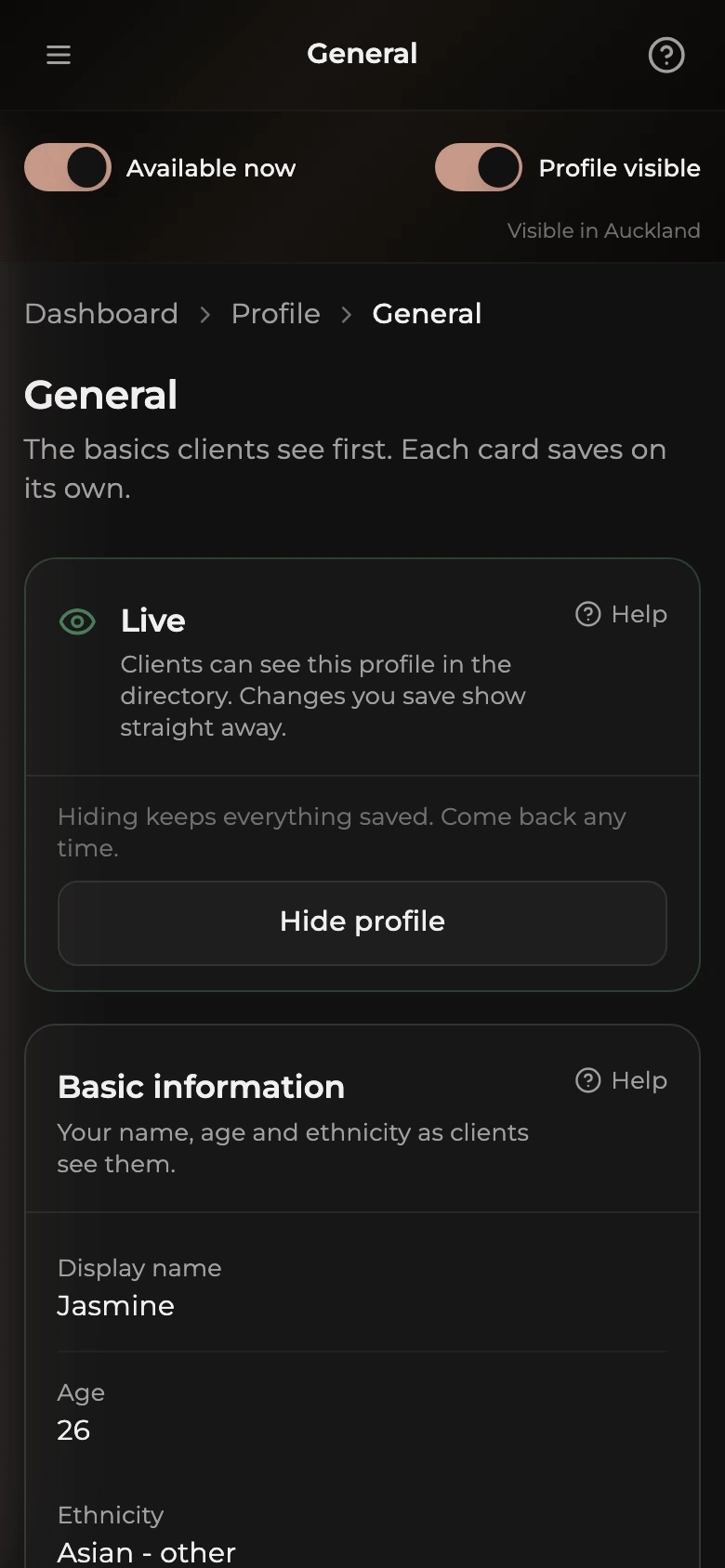
How to open the General page
- On a phone, tap the menu button in the top left. On a computer the menu is always open on the left.
- Tap Profile, then General.
Your publish status
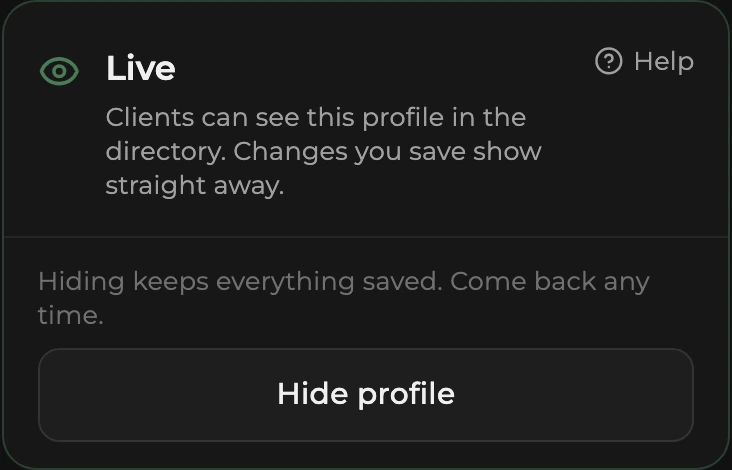
The first card is titled with your current state (Not live yet, Under review, Live, Hidden) and shows where your profile stands and carries the one button that moves it on: Submit for review for a new profile (it unlocks once General, Photos, Services, Rates, and the publish agreement are done; anything missing is listed with a Fix link), Hide profile while you are live, or Go live while you are hidden. See Available now, hide your profile, come back for every state.
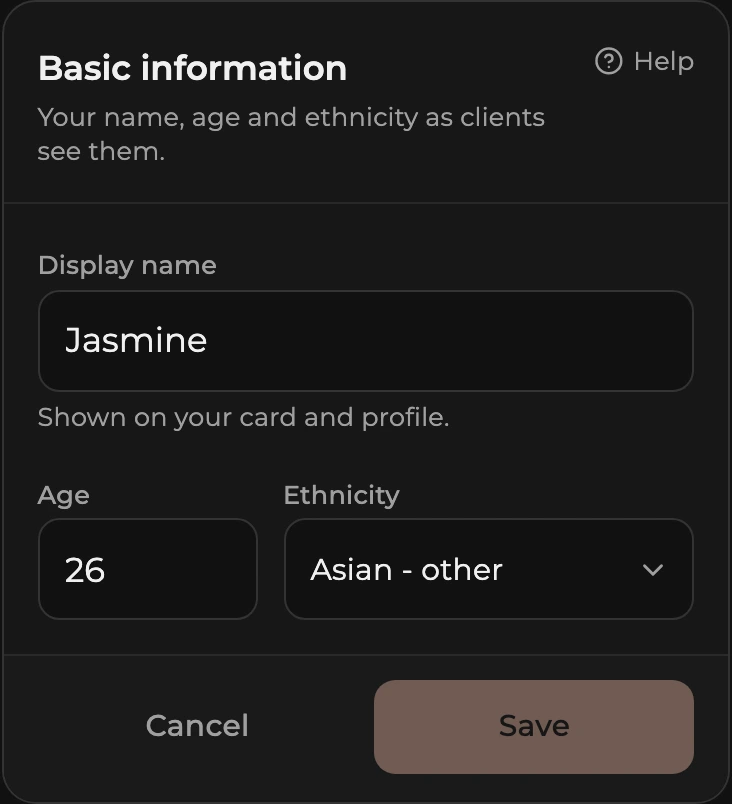
Basic information
- Tap Edit on the Basic information card.
- Type your working name into Display name.
- Enter your Age (18 or over).
- Pick your Ethnicity from the search list (type to search).
- Tap Save.
The card also shows your Starting rate, which is your 1 hour rate. It is read-only here. Use the Change in Rates link, or open the Rates page, to change it.
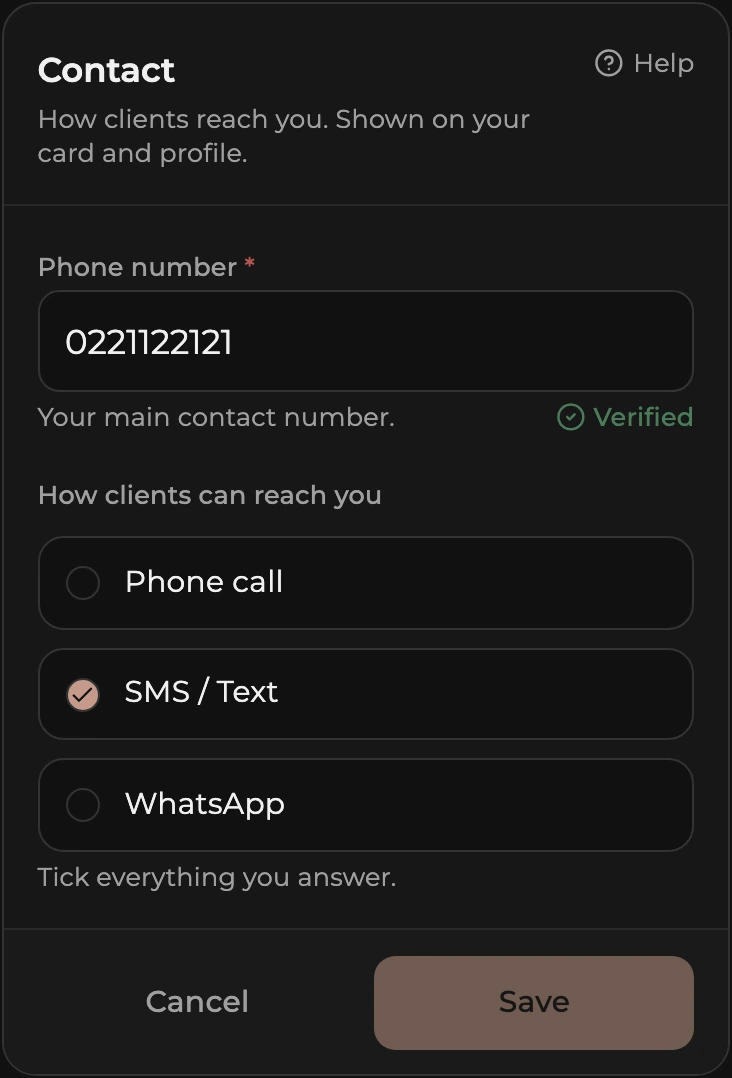
Contact
- Tap Edit on the Contact card.
- Type your number into Phone number. Digits, spaces, +, parentheses, and hyphens are fine.
- Under How clients can reach you, tick any of Phone call, SMS / Text, and WhatsApp. Tick everything you answer. At least one must stay ticked.
- If you use a different number for WhatsApp, tick My WhatsApp number is different and type it in with the country code (+64 for NZ). Otherwise WhatsApp uses your main number.
- Tap Save.
To verify a number, save it first, then tap Verify phone on the card and enter the code we text you. A verified number shows a green Verified tick.
Location
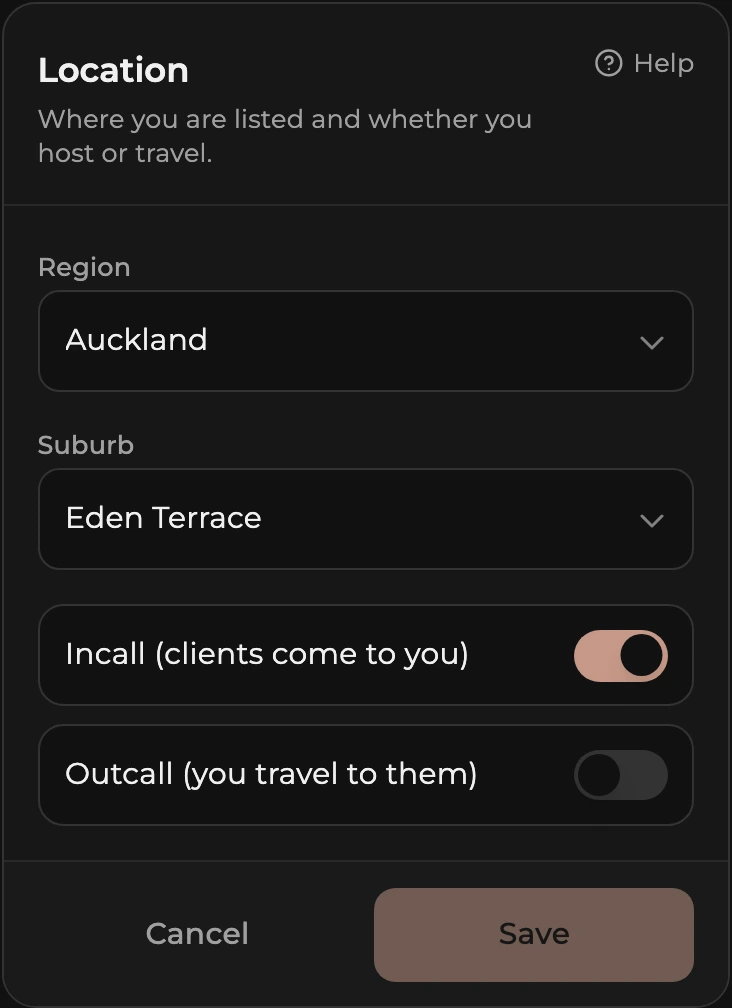
- Tap Edit on the Location card.
- Pick your Region. The Suburb list unlocks once a region is chosen.
- Turn on Incall (clients come to you), Outcall (you travel to them), or both.
- With outcall on, choose where you travel under Outcall suburbs: Whole region, or Pick suburbs and tick the ones you cover.
- Tap Save.
While a tour is running, the card shows a Touring now note pointing to the Touring page. Your base location stays as it is; the tour city is shown on your profile automatically. See Add a tour.
Appearance
Optional. Anything you leave blank is simply not shown on your profile.
- Tap Edit on the Appearance card.
- Fill in Height (cm) and Weight (kg) if you want them shown.
- Pick a value for Body type, Bust, Breast type, Hair, and Eyes.
- Tap Save.
About (your bio)
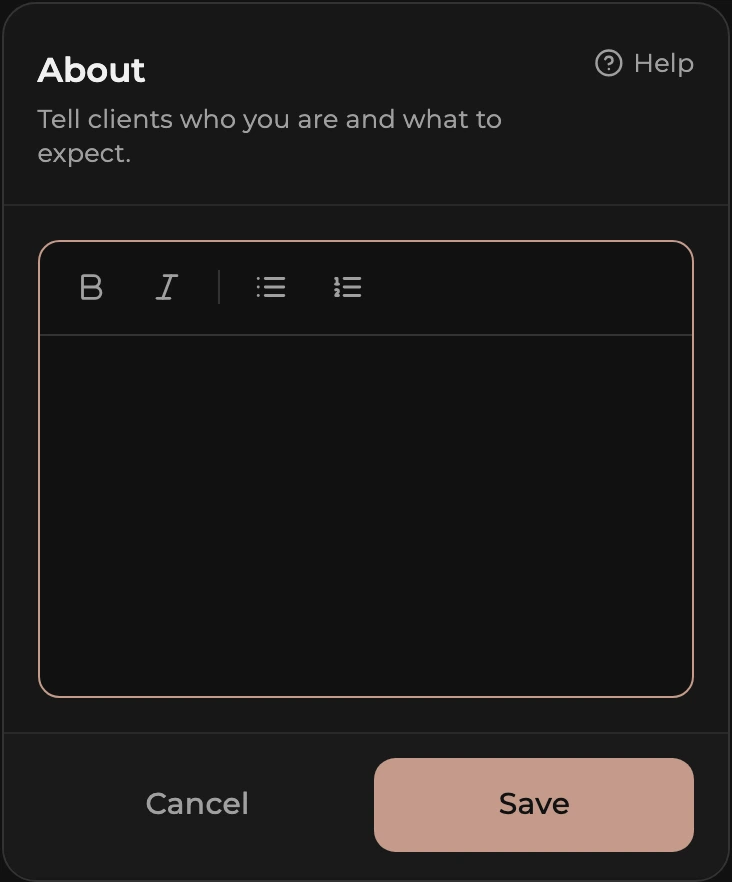
- Tap Edit on the About card.
- Write who you are, what you enjoy, and what clients can expect. Two or three short paragraphs is plenty.
- Highlight text and use the toolbar for Bold, Italic, and bullet or numbered lists.
- Tap Save.
Services and Socials
The Services card on this page is a summary. Tap it to go to the Services page, see Choose your services. The Socials card takes an Instagram, X (Twitter), and TikTok handle or link, all optional.
Publish agreement
Until you have accepted the listing agreement, a Publish agreement card sits at the bottom of the page: tap Edit, read the statement, switch it on, and save. Once it is recorded the card disappears; the status card at the top lists it as done. Your profile cannot be submitted without it.