Add a new escort
Manually create a new escort listing under your agency.
How to add another escort to your roster by hand. Your first escort is set up through the agency onboarding wizard. Every escort after that is added from the dashboard, either by hand (this article) or by importing an existing listing (see Import an escort). One agency login manages any number of escorts; the escorts themselves do not need an account.
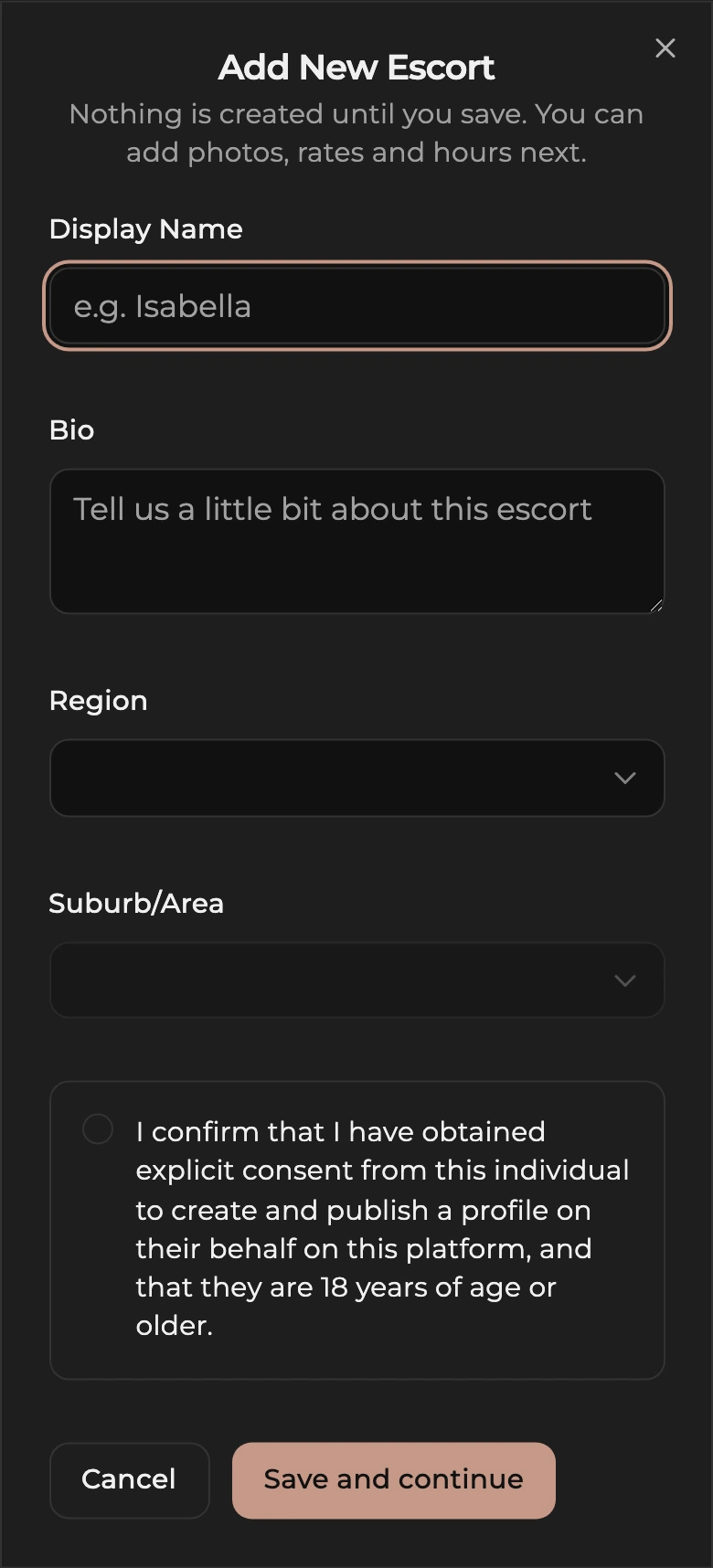
How to add a new escort
- Open Escorts from the dashboard menu.
- Tap Add New Escort.
- Fill in Display Name, a short Bio, Region, and Suburb/Area.
- Tick the consent box confirming the escort is 18 or older and has agreed to be listed by you.
- Tap Save and continue. Nothing is created until then. You land on the new escort's General page.
How the escort's pages work
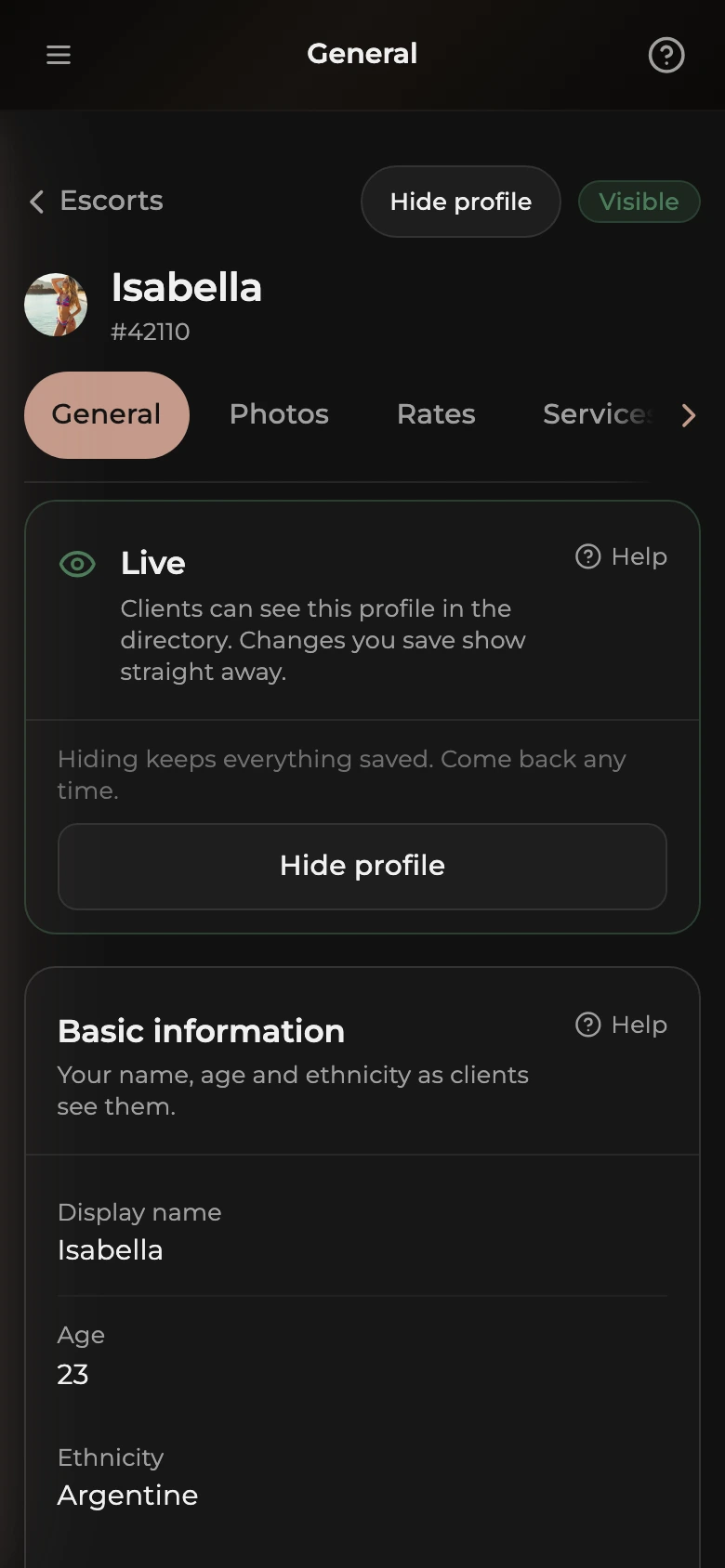
Every escort has the same set of pages, reached from the strip of pills under her name: General, Photos, Rates, Services, Availability, Touring, Verification (this one appears once she has been submitted for review), and Stats. On a computer, once you have two or more escorts, there is also a switcher next to the name to jump to another escort; on a phone go back to the Escorts list. Each page is made of cards that save on their own: tap Edit, change the fields, tap Save.
How to finish the profile
- On General, complete the cards: basic information, contact number, location (with incall and outcall), appearance, and the bio. Agency escorts do not verify a phone number; your agency phone check at signup covers the roster. The Publish agreement card at the bottom records your consent to list her and disappears once recorded.
- Open Photos and upload at least three photos of the escort.
- Open Rates and set the 1 hour rate plus any other durations.
- Open Services, set the primary service type, and tick what she offers.
- Open Availability and set her usual weekly hours.
- Back on General, the status card at the top (its title is the current state, for example Not live yet) lists anything still missing with a Fix link. When it is all done, tap Submit for review. A Muse admin checks every new profile once, usually within 24 hours, and the profile is listed on approval. After that, Profile visible on her card (or Hide profile / Go live on the status card) switches her in and out of the directory instantly.
Field-by-field walkthroughs, written for solo escorts but identical for agency escorts: General, Photos, Services, Rates, and Availability.
About the first-approval requirement
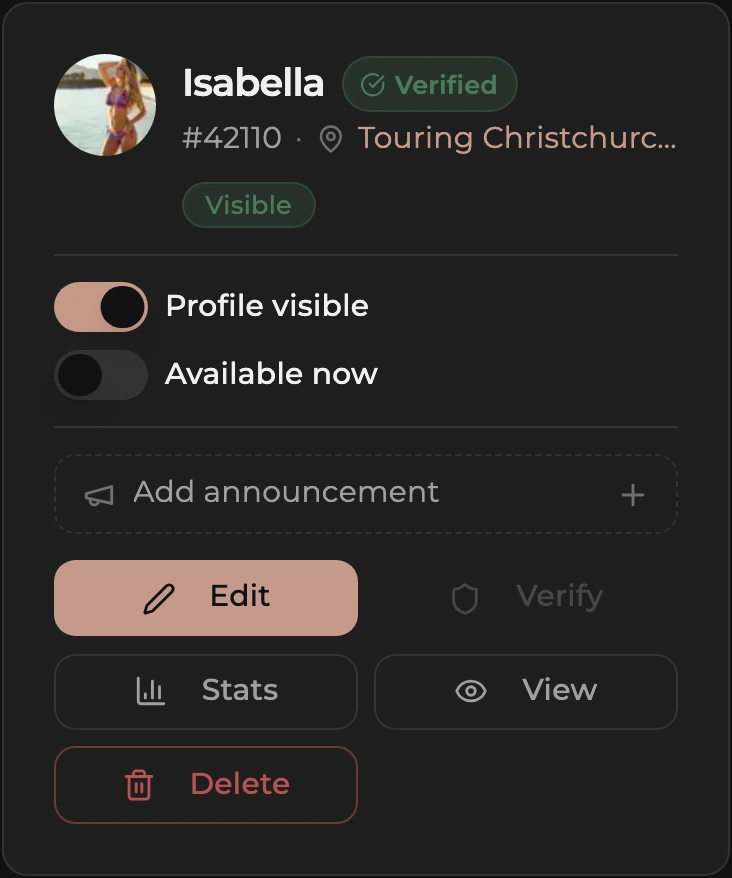
To keep the public listings free of spam, you cannot add or import more escorts until your first escort has been approved by our team. Until then the Escorts page shows Waiting on first approval above the buttons.
- Submit your first escort through the agency onboarding wizard.
- Wait for the approval email (usually within 24 hours).
- Return to the Escorts page; the Add New Escort and Import Escort buttons unlock automatically.
- From then on there is no limit on how many escorts you can add.