Create your profile
Each section of the profile editor explained, with screenshots.
Your profile is your public listing on Muse. Below is each section of the editor with a screenshot and what to fill in. The page autosaves as a draft, so you can leave at any point and come back. Nothing is visible until you click Publish.
Open the editor
From your dashboard, click Edit Profile. The page shows seven collapsed sections.
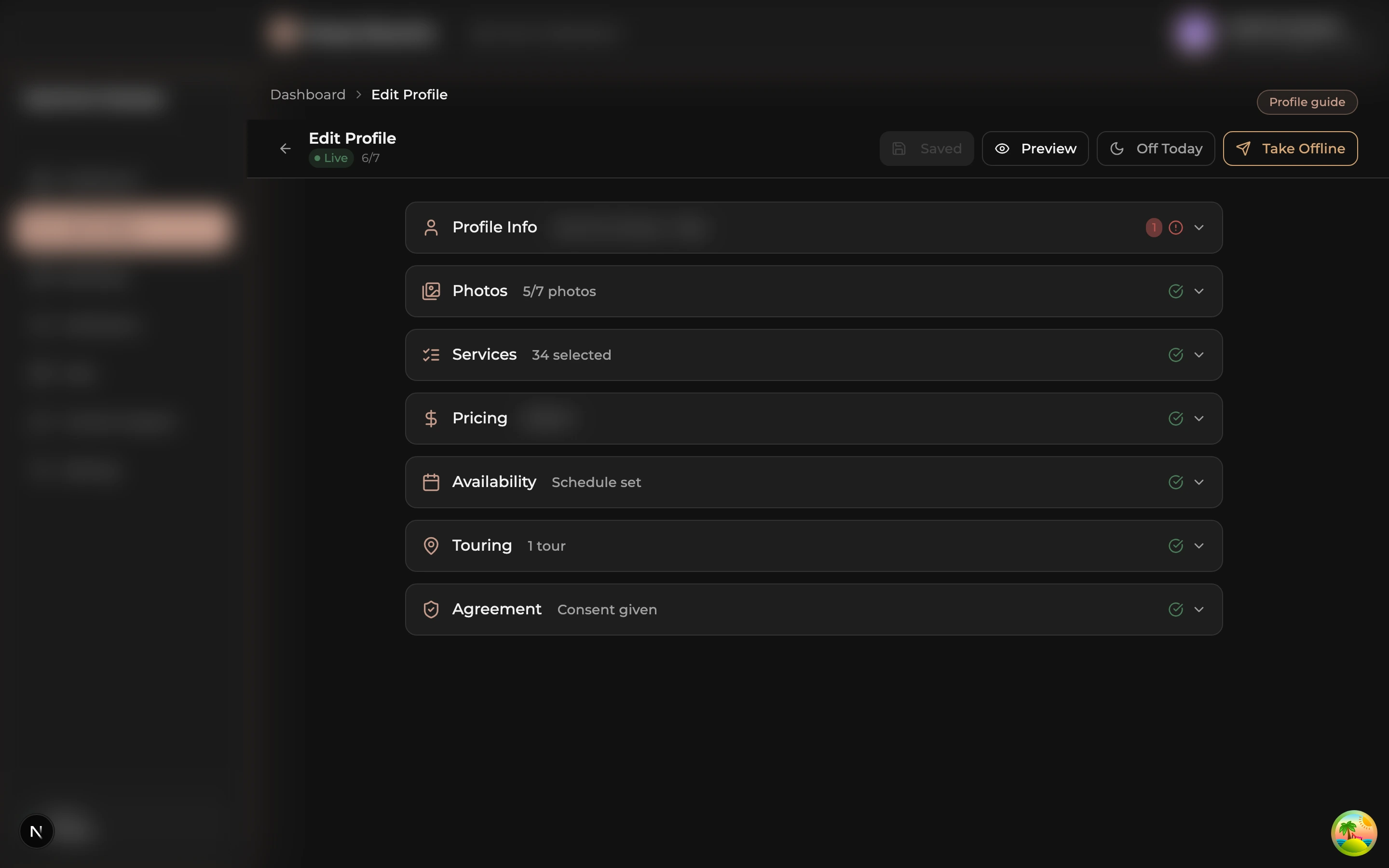
Each row is a section. Click a row to expand it. The progress count at the top right (for example 6/7) shows how many sections are filled in.
Profile Info
The longest section. Open it and work top to bottom.
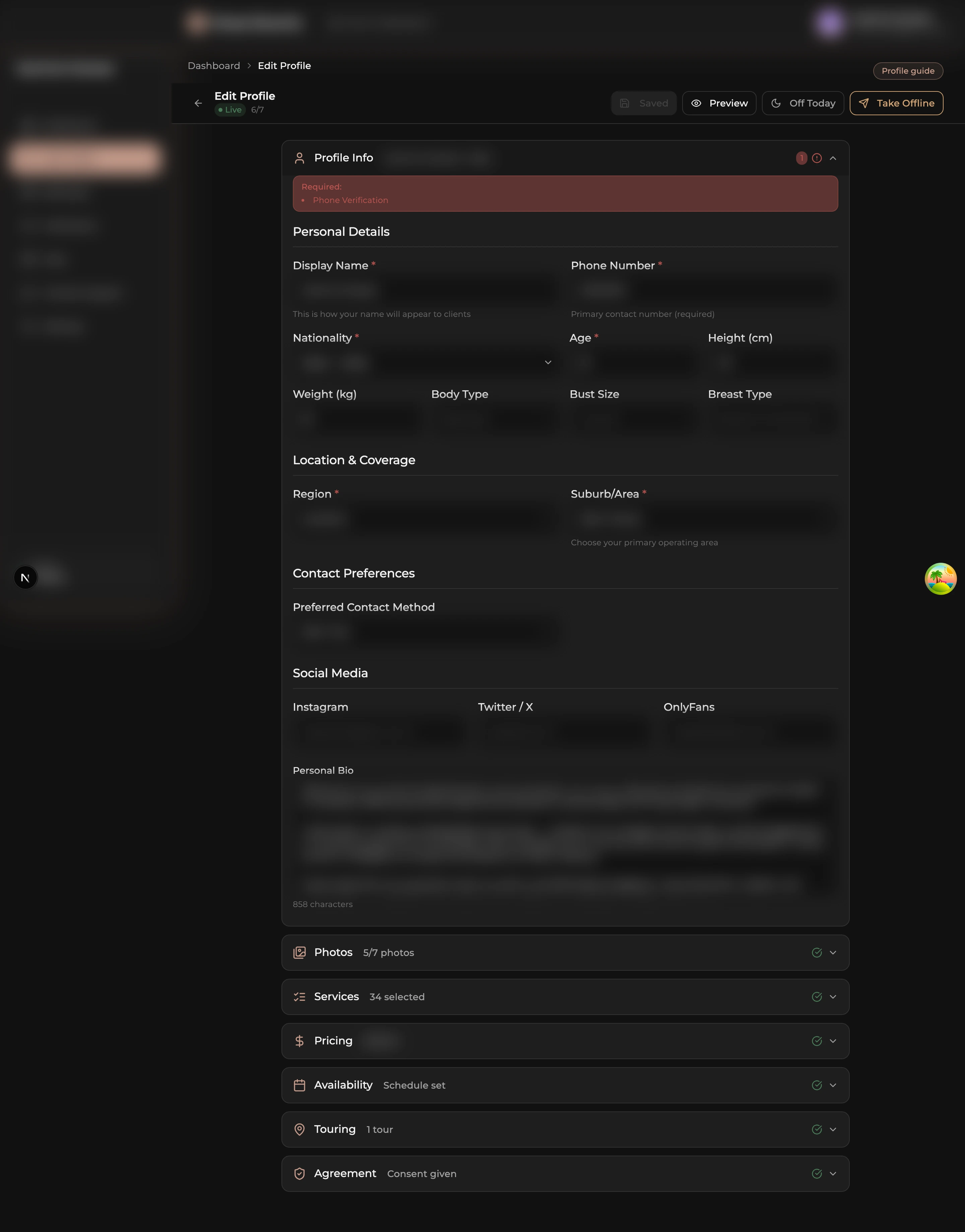
Personal Details: display name (what clients see, not your real name), phone number clients should call, nationality, age, height, weight, body type, bust size, breast type. Location & Coverage: region and suburb. This decides which location pages you appear on. Contact Preferences: SMS, WhatsApp, whichever you want clients to use. Social Media: optional Instagram, Twitter / X, OnlyFans URLs. Personal Bio: two or three short paragraphs in your own voice. The red banner at the top flags anything required before publishing.
Photos
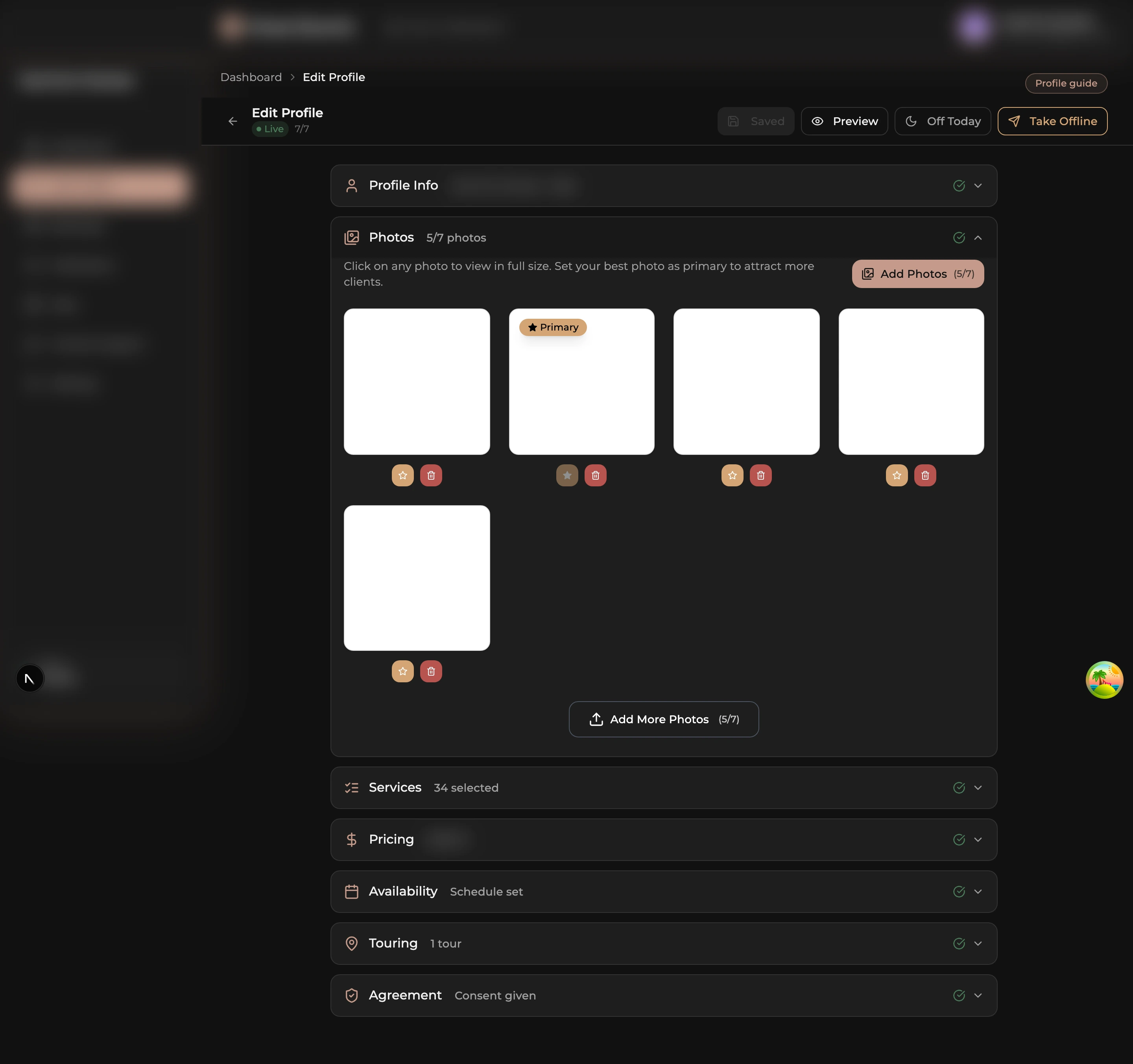
Click Add Photos to upload, or drag files onto the page. Hover any photo to set it as primary (star icon) or delete it (trash icon). Drag photos to reorder. Full guide: Upload photos.
Services
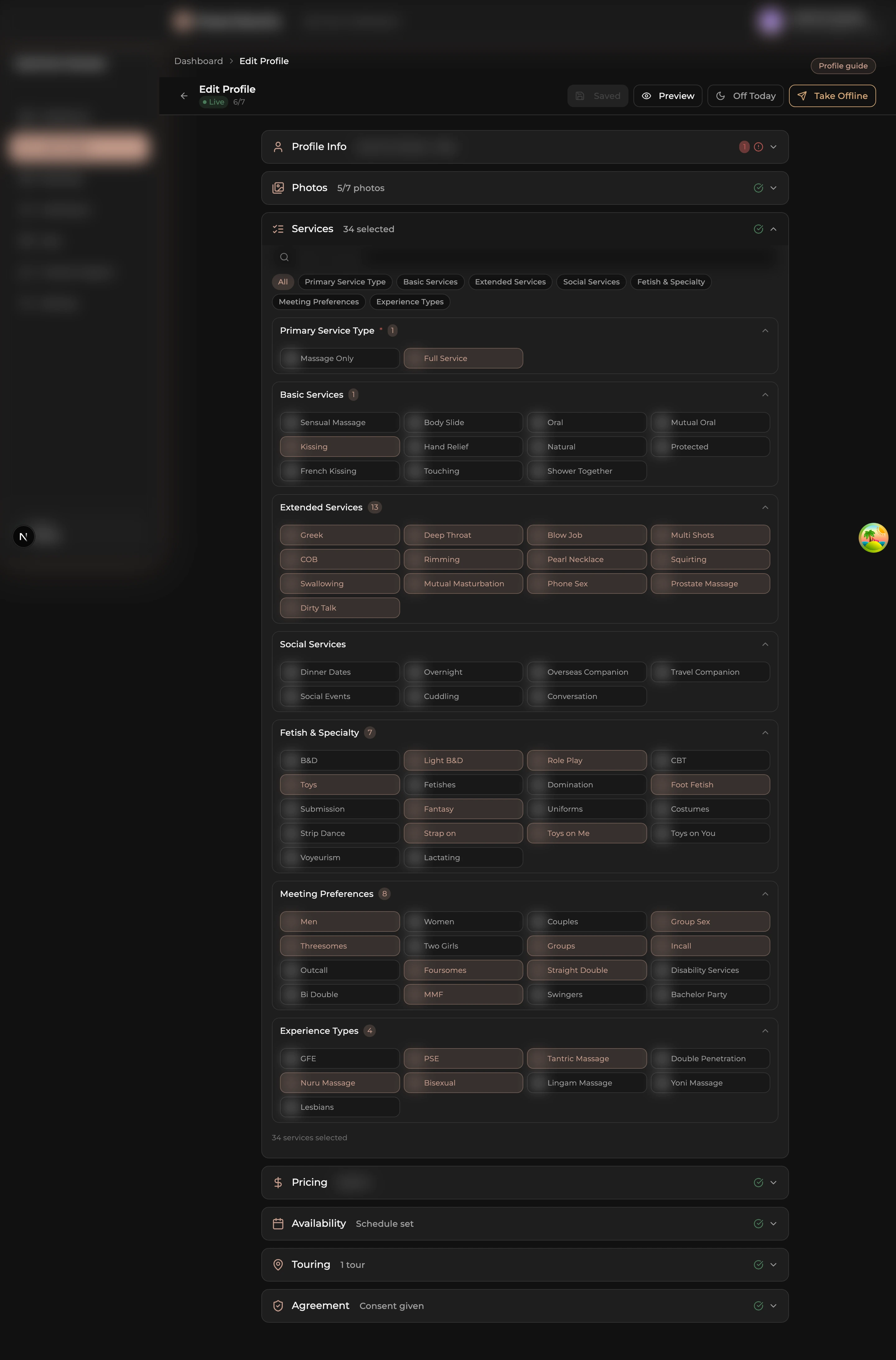
Toggle on every service you actually offer. Toggle off the ones you do not. Clients filter by service, so accuracy matters: anything you toggle on that you do not do leads to inquiries that will never close.
Pricing
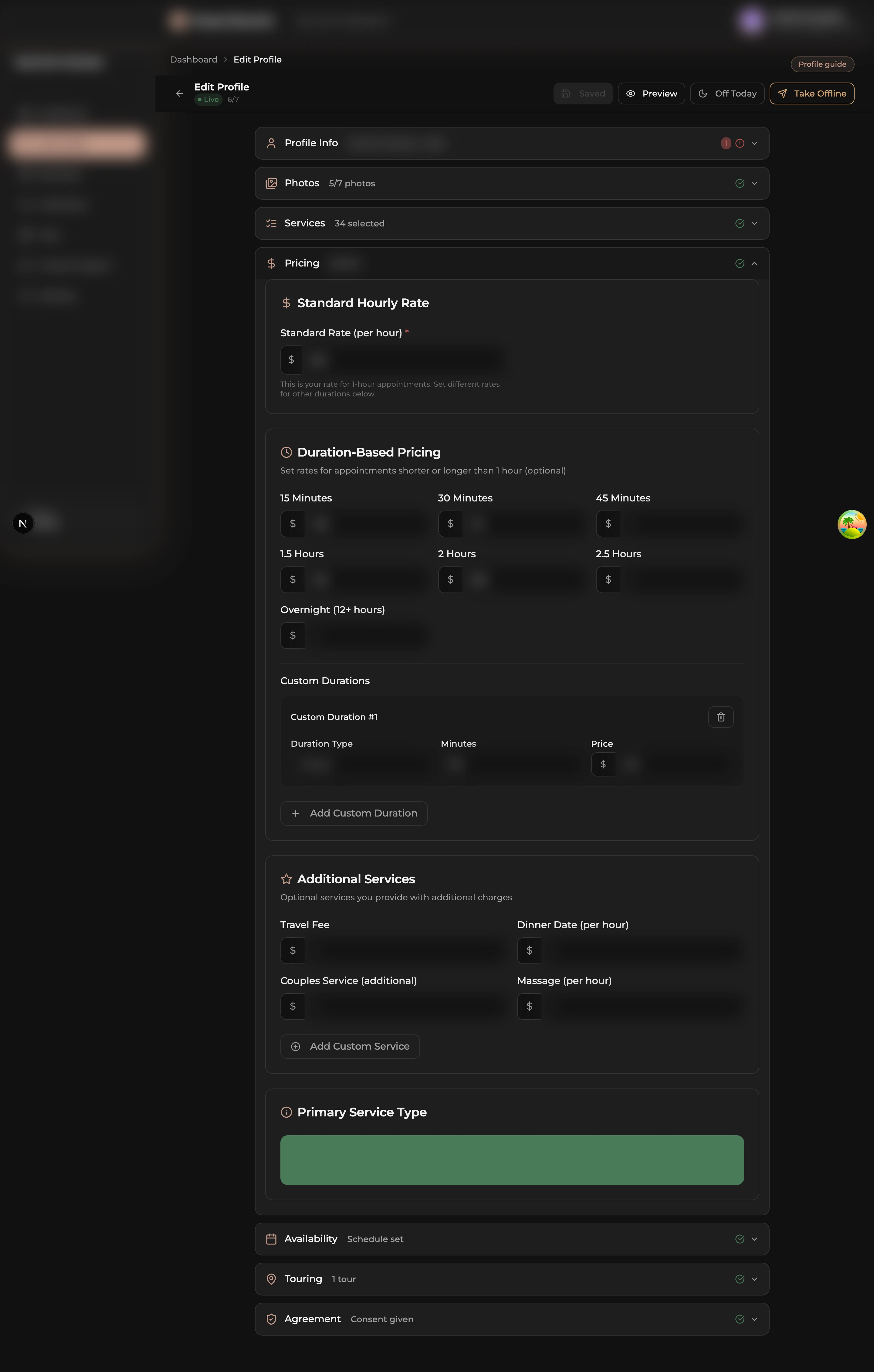
Type your hourly rate. If you take longer bookings, click Add Tier for each one (two hours, overnight, dinner date) and type the price. Add as many tiers as match how you actually work.
Availability
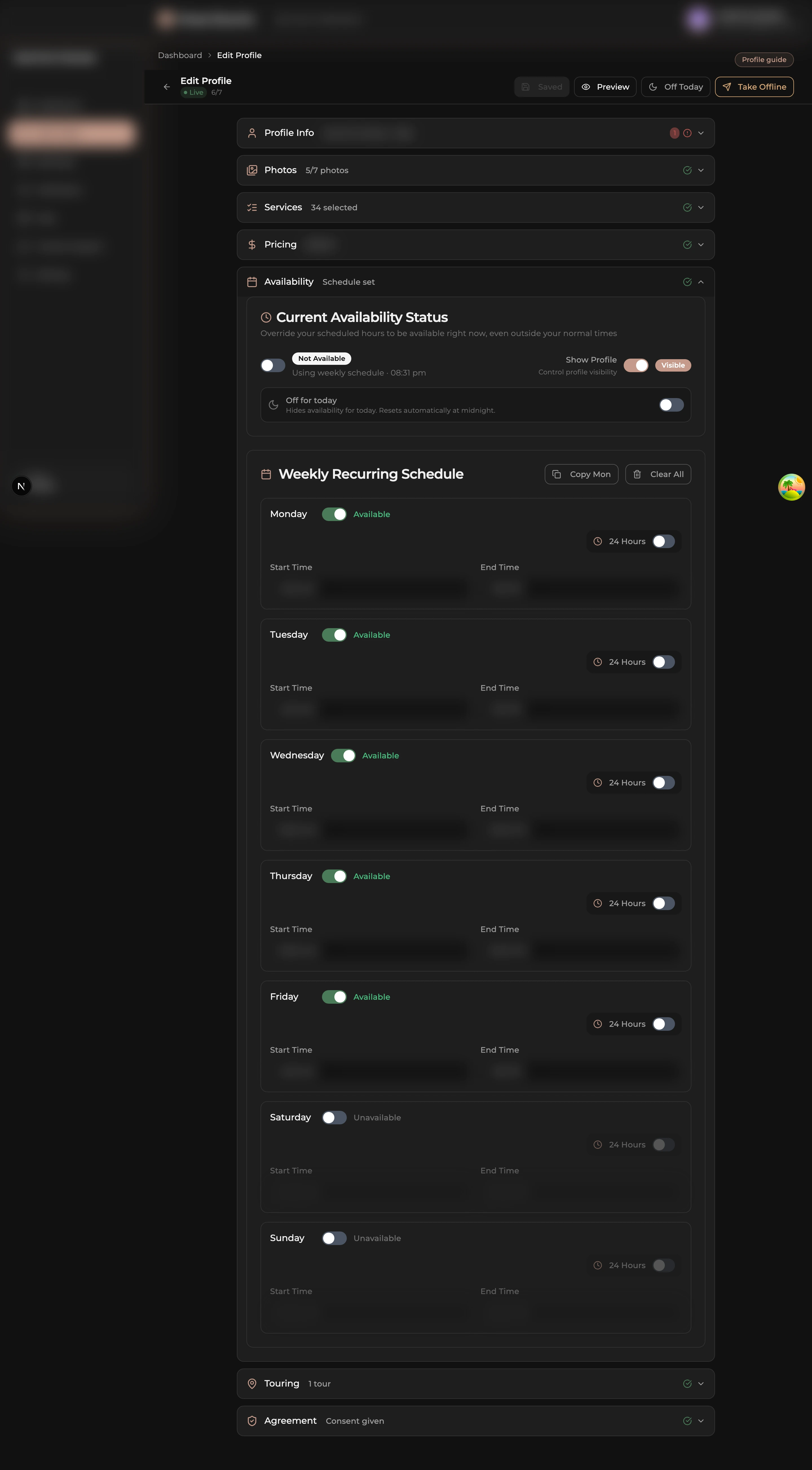
For each day of the week, toggle the day on if you usually work then set start and end times. This is your weekly default; one-off changes for specific days can be made from your dashboard later without touching this section.
Agreement
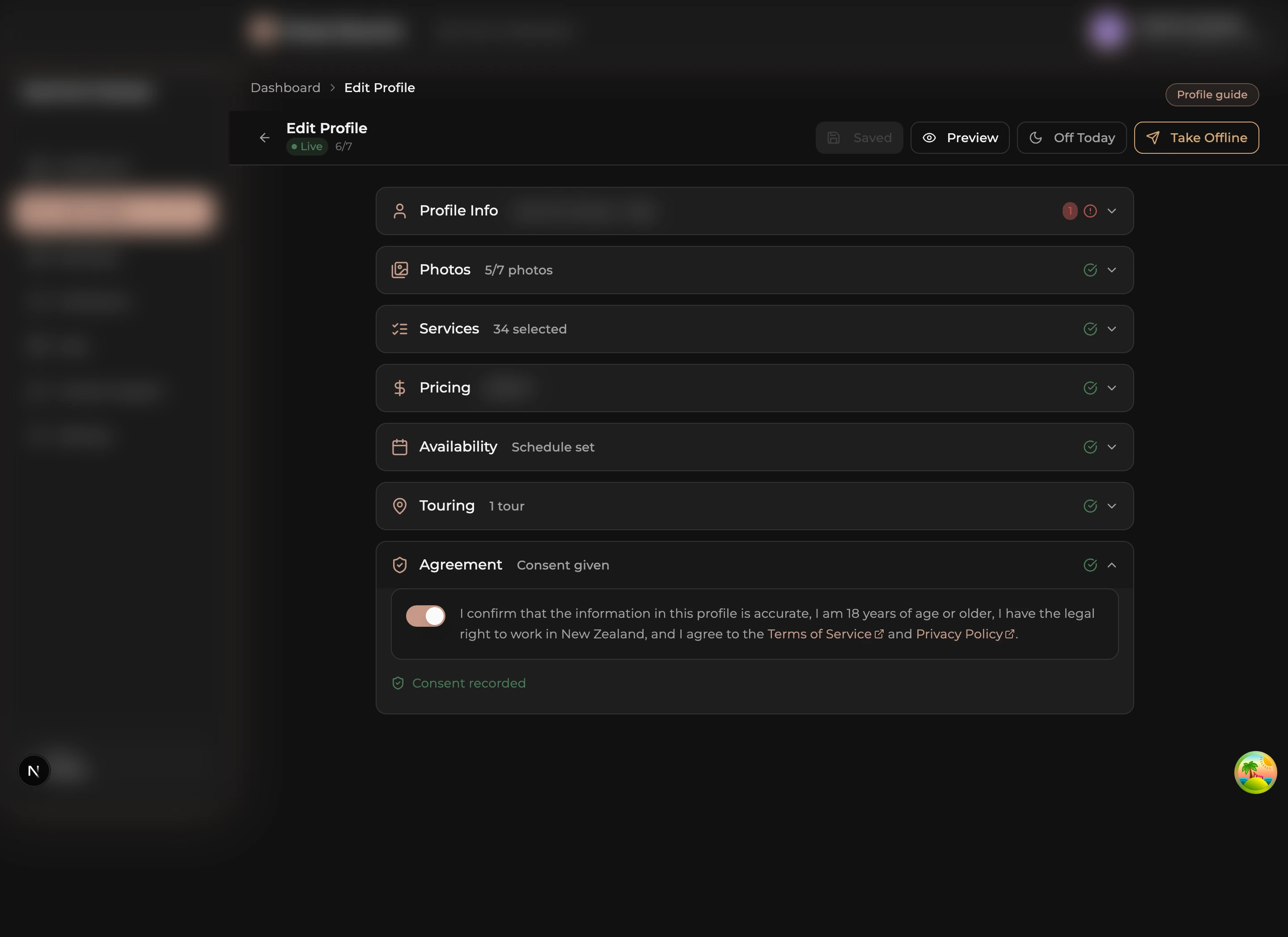
Read the consent text and tick the box. This is required before publishing.
Publish
When all sections show green checks, click Publish at the top of the page. The listing goes live in the directory within a few minutes. Take Offline on the same page hides it again immediately.
Verification is a separate step in the sidebar. Full guide: Get verified.